Apple iPhone 16 Pro Max USB-C Connector
Before You Begin
Warning
Read Battery Safety and follow workspace and battery handling guidelines before you begin.
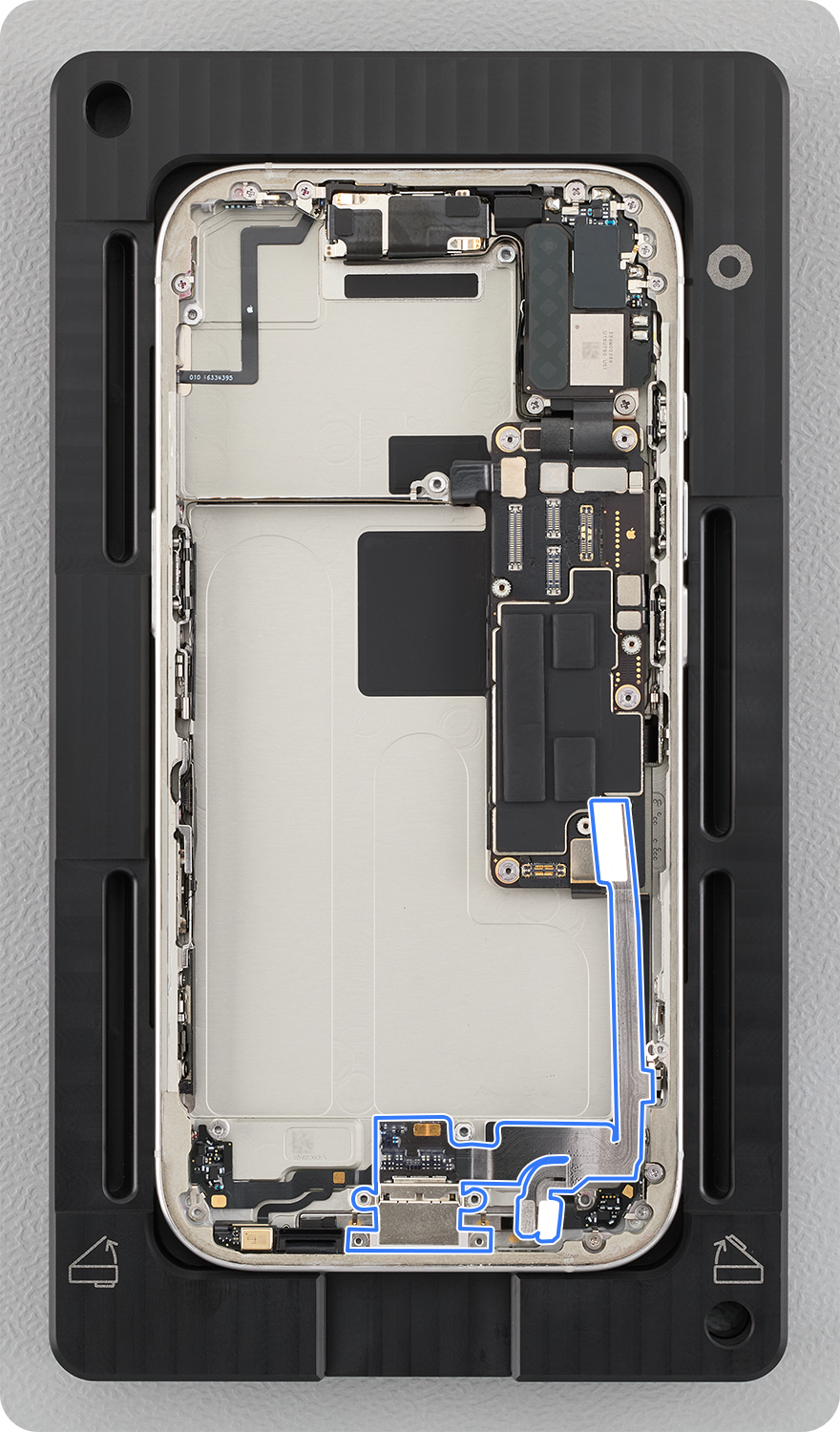
Remove the following parts before you begin:
Tools
-
ESD-safe tweezers
-
Long JCIS bit
-
Nylon probe (black stick)
-
Torque driver (teal, 0.75 kgf cm)
Removal
Note: If you’ve already completed the removal steps, skip to reassembly.
-
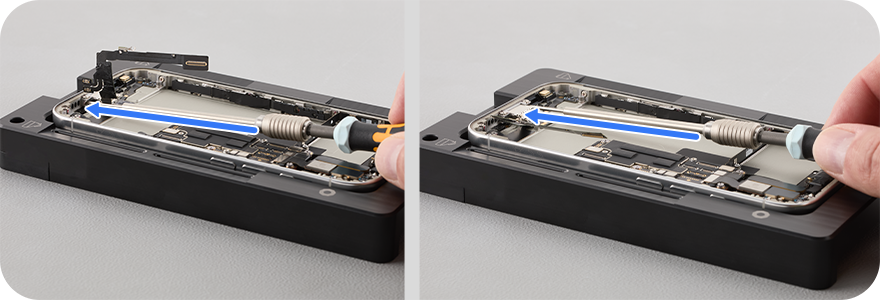
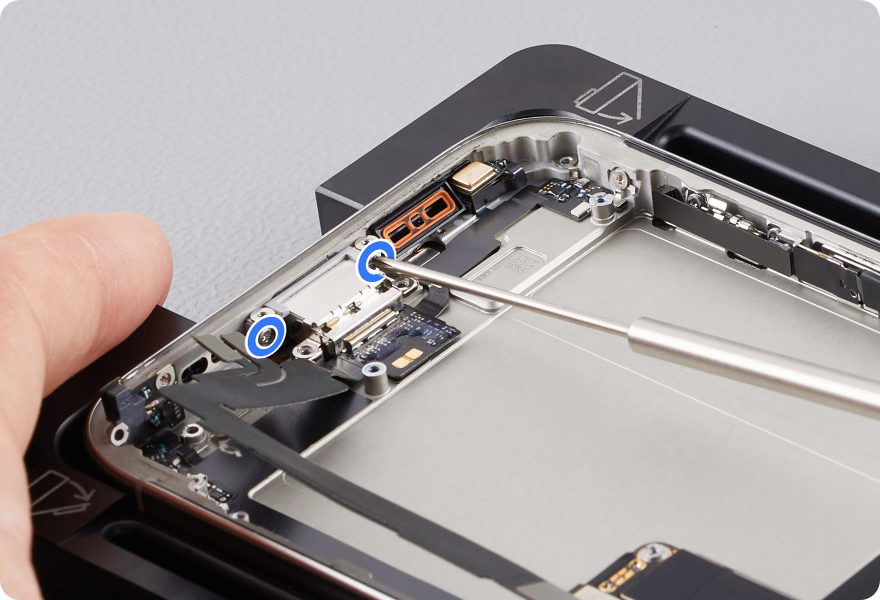
Use a torque driver and the long JCIS bit to remove the two crosshead screws from either side of the USB-C connector. Set aside the screws.
-
Caution
-
Keep the torque driver at a low angle to avoid stripping the screws.
-
Avoid contact with the logic board.
-
-
-
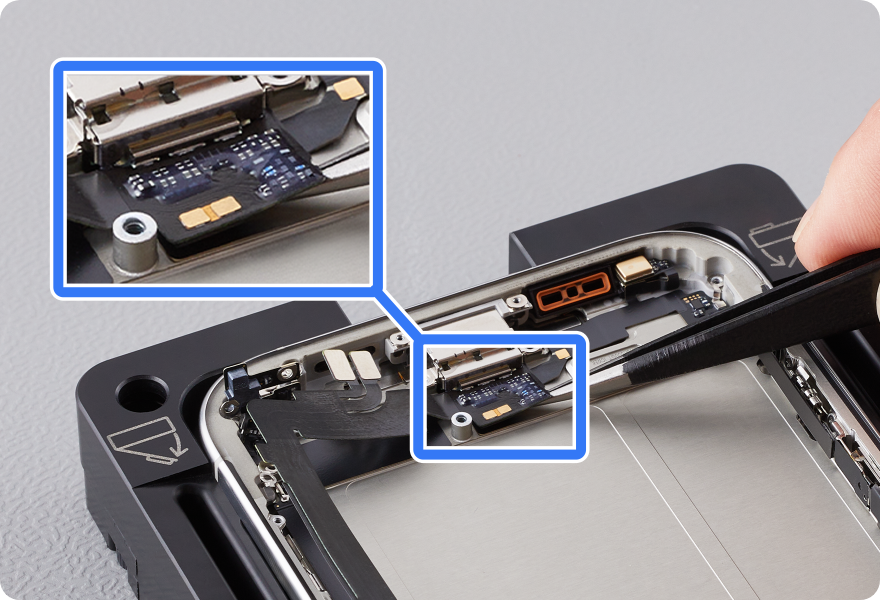
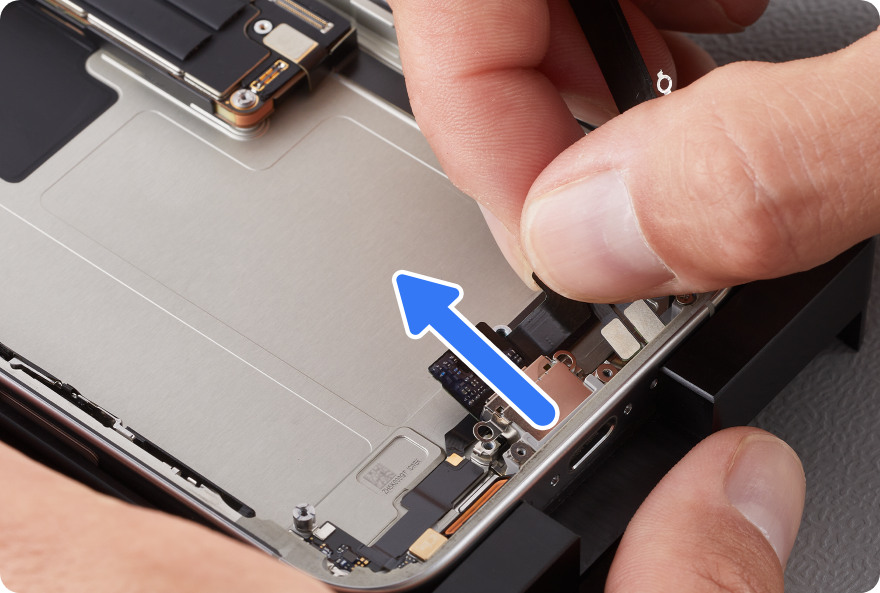
Loosen the adhesive between the USB-C connector and the enclosure.
-
Remove the USB-C connector.
Reassembly
Warning
Installing only new batteries is recommended. Used battery cells can become damaged during the removal process. Read Battery Safety to learn more.
-
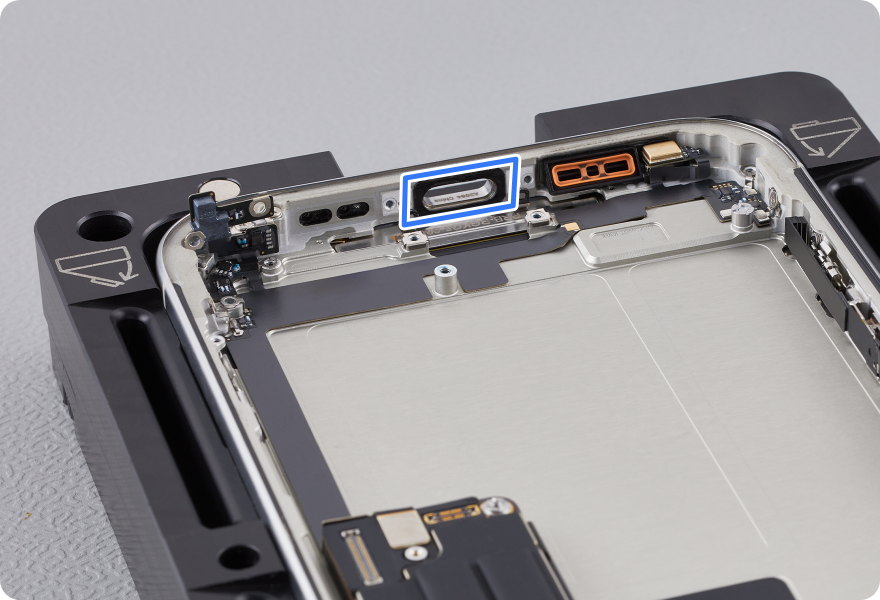
Use ESD-safe tweezers to remove all residual adhesive from the enclosure. Use an ethanol wipe or IPA wipe to clean the enclosure.
-
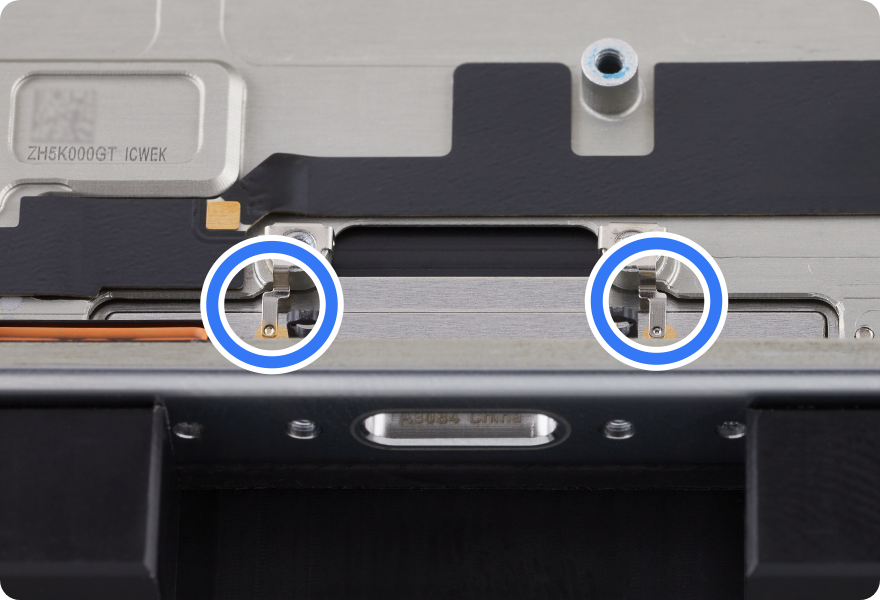
Ensure that the grounding clips aren’t bent. If they’re bent, realign them.
-
Remove the adhesive liner from the replacement USB-C connector. Position the USB-C connector in the enclosure.
-
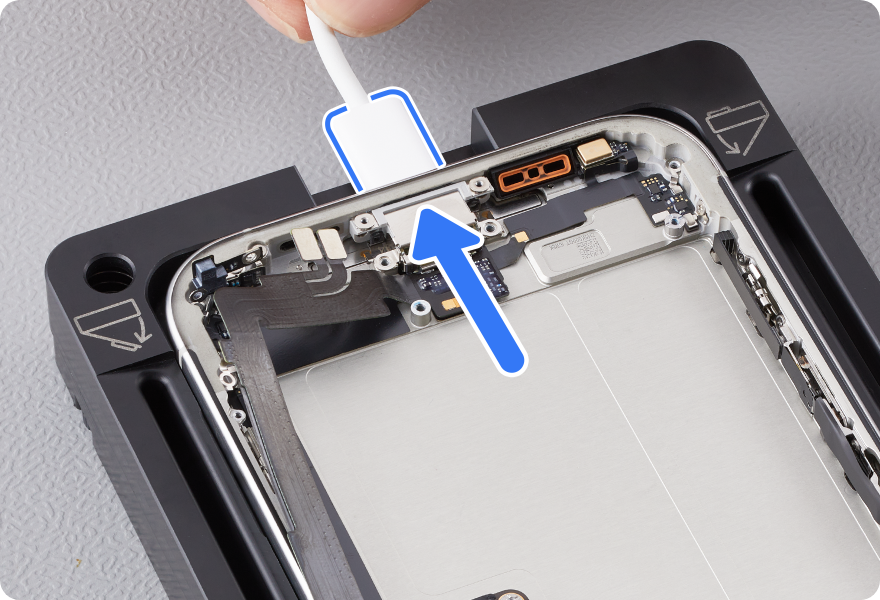
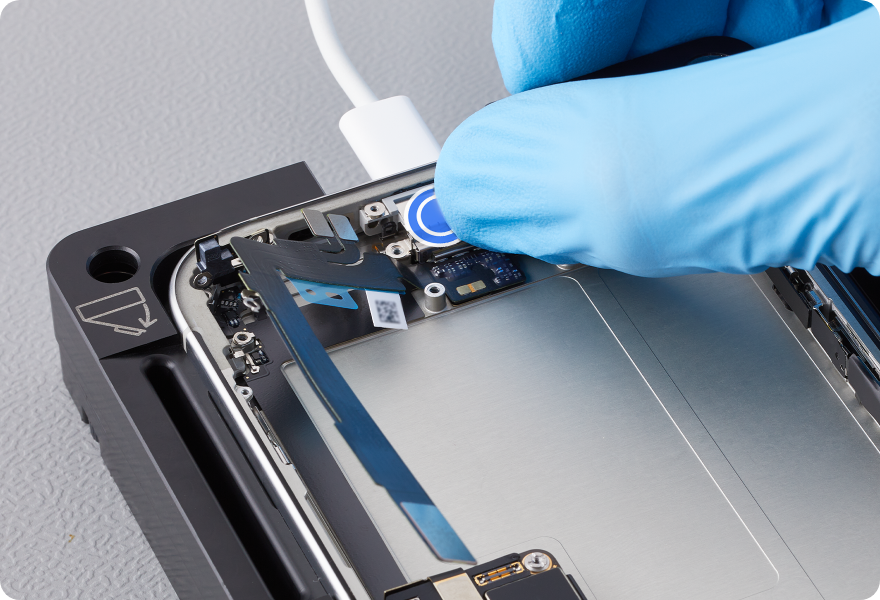
Insert a USB-C charge cable into the port on the iPhone. Then press the USB-C connector into the USB-C charge cable for proper alignment.
-
Warning: Ensure that the USB-C charge cable isn’t plugged into a power source.
-
-
Gently press on the USB-C connector to adhere the adhesive.
-
Note: To avoid damaging surrounding parts, wearing gloves is recommended.
-
-
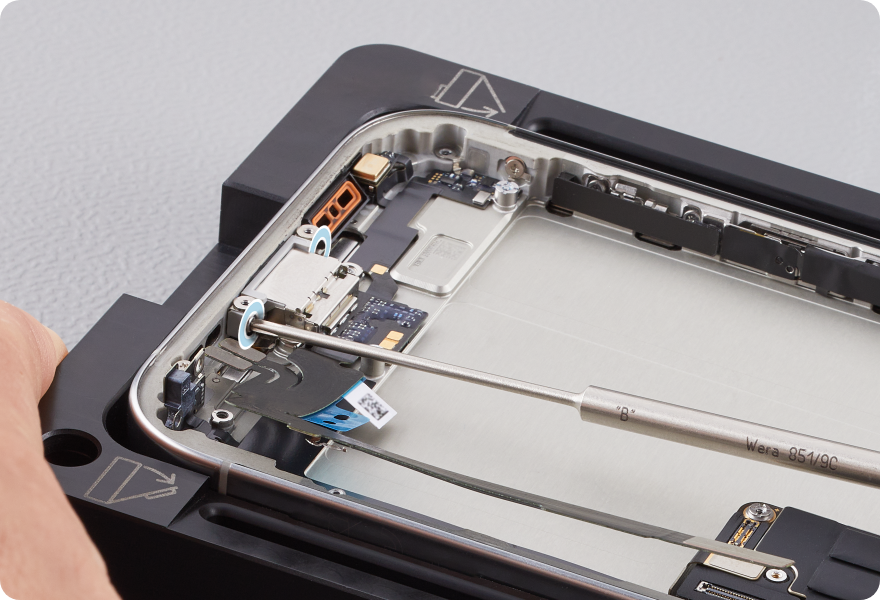
Use the teal torque driver and long JCIS bit to install two new crosshead screws (923-11141) into either side of the USB-C connector.
-
Caution
-
Keep the torque driver at a low angle to avoid stripping the screws.
-
Avoid contact with the logic board.
-
-
Reinstall the following parts to complete reassembly: